Train-Test Split
Train-Test Split is a data preparation utility that partitions a labelled dataset into two non-overlapping subsets — a training set used to fit a model, and a test set used to evaluate its generalisation performance. Separating these subsets before any model training is an essential step in supervised learning workflows: it prevents the model from being evaluated on data it has already seen, giving an unbiased estimate of predictive accuracy.
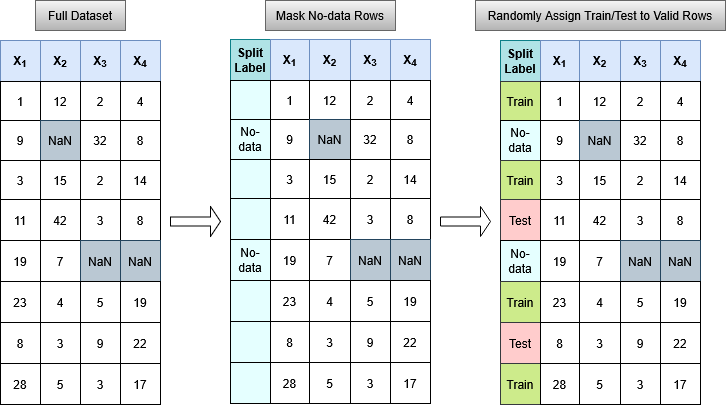
The application supports two splitting strategies: a fully random split, and a group-wise split that can be used to keep geologically or spatially coherent groups intact based on provided groups, which helps reduce data leakage between training and test sets.
Interface
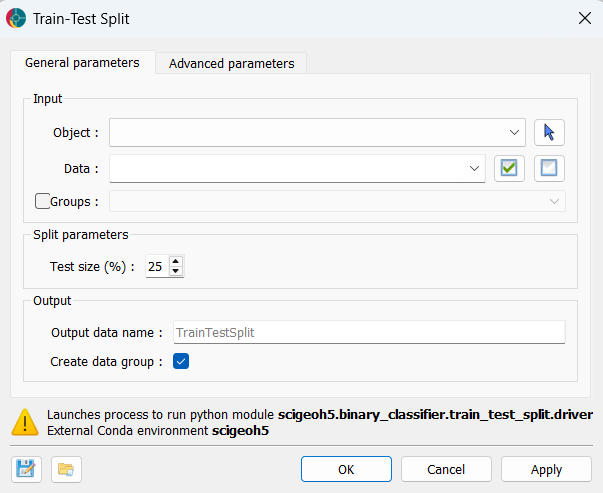
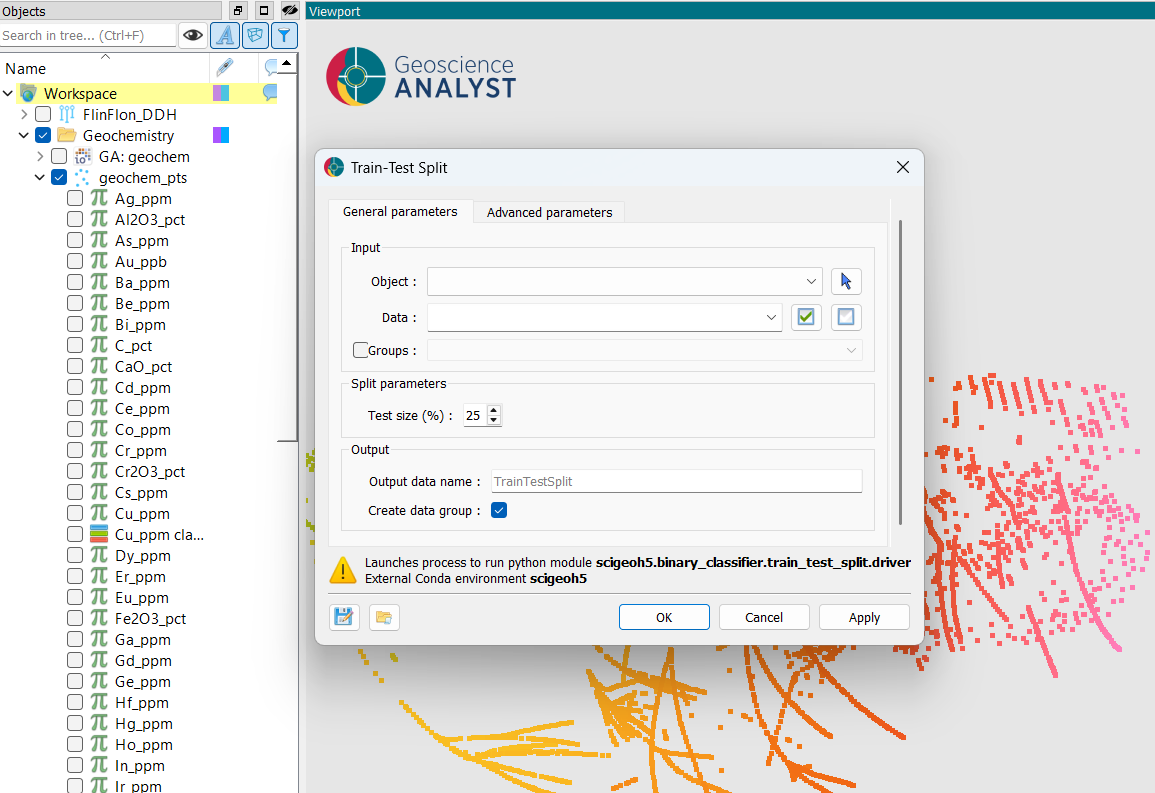
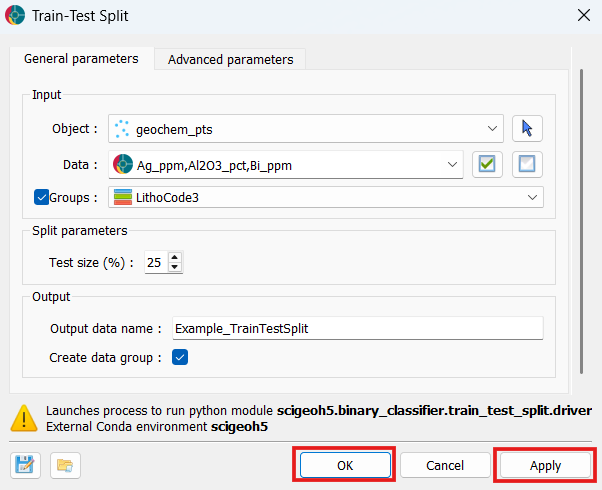
At a minimum, the application requires the selection of an object, the properties to consider for the split, and a test size. The interface is presented in the figure below.
Input
Object: The object containing the data to split. Supported object types include Block Models, Curves, Draped Models, 2D Grids, Octree Grids, Points, and Surfaces.
Data: One or more float properties associated with the object. Only rows that have valid (non-NaN) values across all selected properties are eligible for inclusion in the split; all other rows receive a no-data label in the output.
Groups (optional): A categorical (
ReferencedData) property that defines group membership. When provided, the split is performed group-wise (see Methodology). Rows with a group label of0(Unknown) are excluded from the split. At least 2 unique non-zero group labels must be present.
Split Parameters
Test size (%): The percentage of eligible samples (or groups, in group-wise mode) to assign to the test set. Accepts values between 1 and 99; defaults to
25.
Output
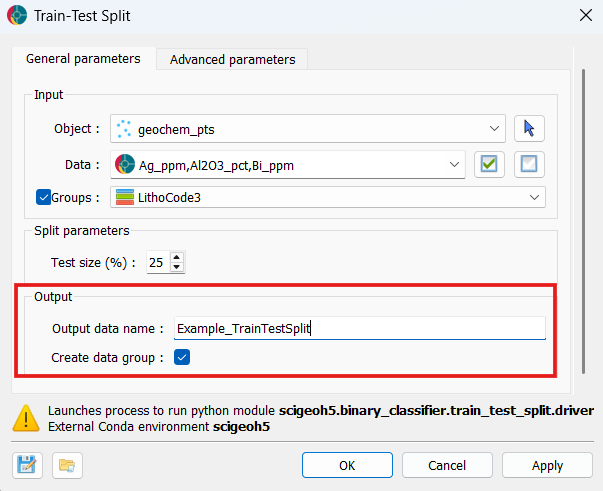
Output data name: The name for the output
ReferencedDataproperty written back to the object. Defaults toTrainTestSplit.Create data group: When checked, a data group containing the selected input properties is created on the object. Allows for convenient reuse in downstream applications.
Advanced Parameters
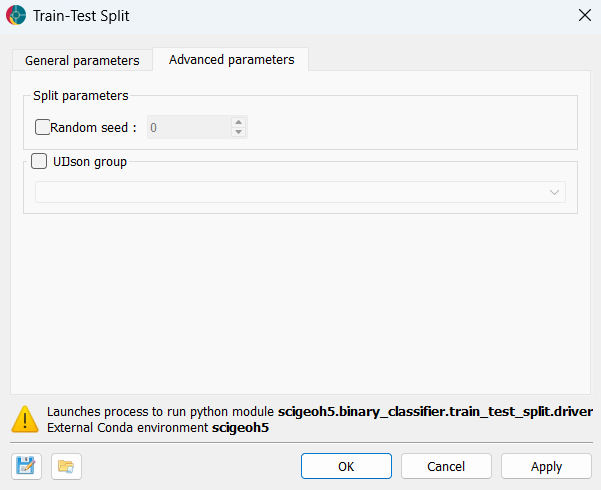
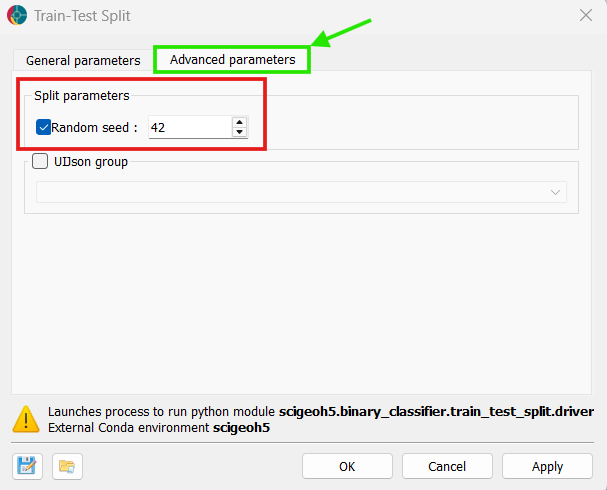
The application provides one additional parameter to control reproducibility. The advanced options are available in the figure below.
Split Parameters
Random seed (optional): An integer seed passed to the random number generator. When set, the split is fully reproducible across runs. When left unset, the split varies with each run.
Methodology
Before splitting, the application builds a valid-row mask by scanning all selected input properties and marking any row that contains at least one NaN value as no-data. Only the remaining valid rows participate in the split.
Two splitting strategies are available depending on whether a Groups property is provided:
Random Split
When no grouping property is supplied, valid rows are split randomly using sklearn.model_selection.train_test_split. The requested test size fraction of valid rows is drawn at random and assigned to the test set; all remaining valid rows become the training set.
Group-wise Split
When a Groups property is provided, the split operates at the level of whole groups rather than individual rows. This preserves the internal structure of each group and prevents data leakage between training and test sets — an important consideration when samples within a group are spatially or otherwise correlated (e.g. samples from the same drill hole or geological domain).
The algorithm proceeds as follows:
The fraction of valid samples belonging to each unique group is computed.
The groups are shuffled (controlled by the random seed when provided).
Groups are accumulated greedily into the test set until the cumulative sample fraction reaches the requested test size; all remaining groups are assigned to the training set.
Rows whose group label is 0 (Unknown) are excluded from the split entirely and receive a no-data label in the output.
Note
Because the greedy accumulation operates on groups rather than individual samples, the actual test fraction in the output may differ from the requested test size, with large differences possible when group sizes are unequal or the number of groups is small.
Results
The primary output is a ReferencedData property added to the client object, using the following encoding:
Value |
Label |
Description |
|---|---|---|
|
Unknown |
Row contained no-data in at least one selected property, or had an unknown group label. |
|
Train |
Row was assigned to the training set. |
|
Test |
Row was assigned to the test set. |
Data Group
When Create data group is enabled, a data group named after the Output data name is created on the client object. It references the selected input properties, making it straightforward to pass a consistent, pre-filtered set of properties to downstream applications.
Tutorial
The following tutorial demonstrates how to use the Train-Test Split application to partition a dataset into training and test sets.
Open the Train-Test Split application.
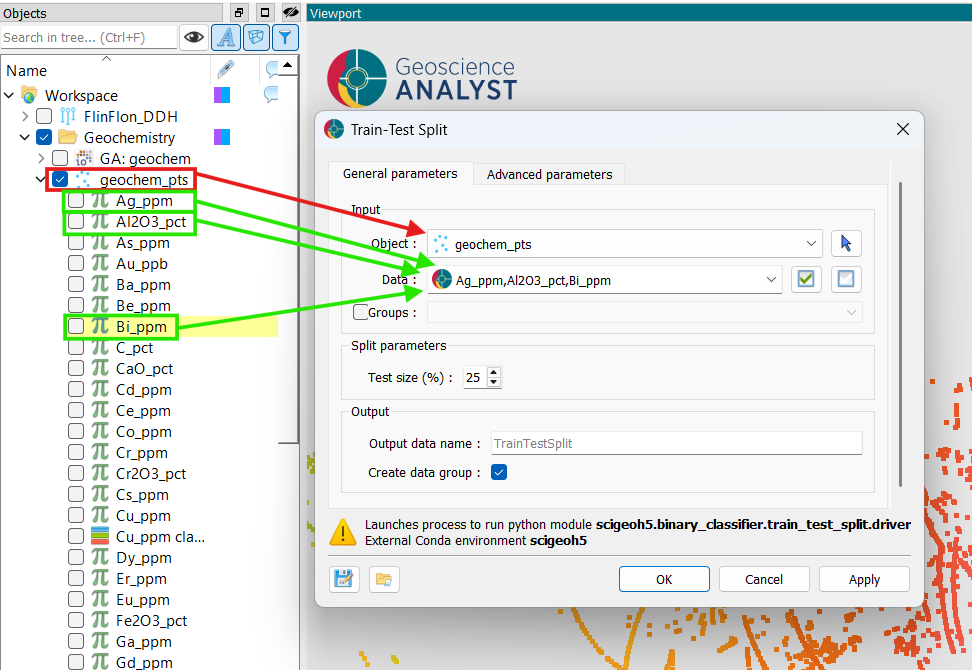
Using the selection dropdowns or by dragging and dropping from the Objects panel, select the object containing the data used for the split. Then, select the data properties to include in the split. In this example, we select a Points object “geochem_pts” and the properties “Au_ppm”, “Al2O3_pct”, and “Bi_ppm”.
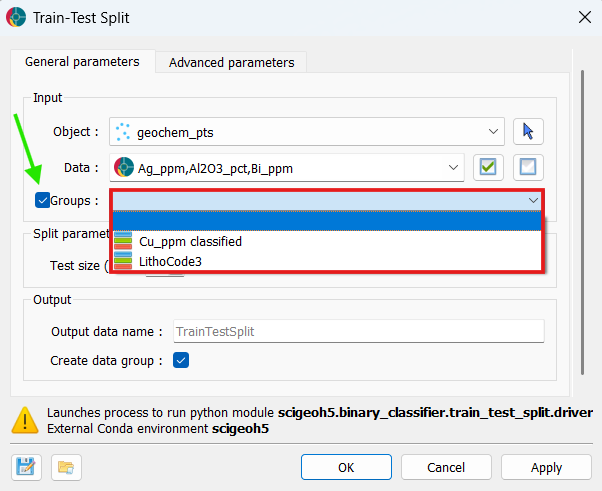
(Optional) If you want to perform a group-wise split, enable Groups and select a categorical property containing group labels.
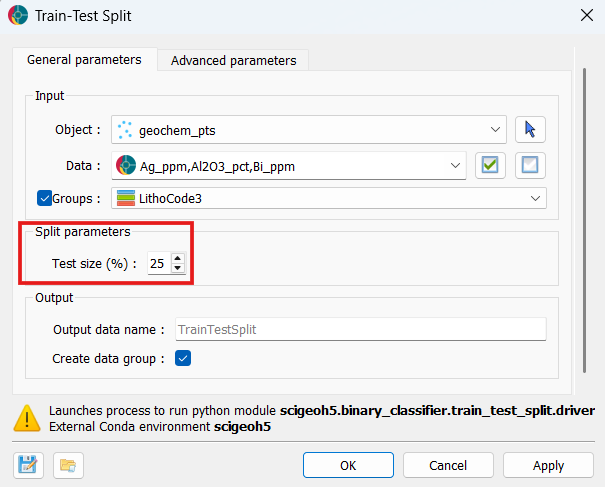
Set the desired Test size percentage. In this example, we stick the default value of 25%.
(Optional) Go to the Advanced parameters tab and set a Random seed for reproducibility. In this example, we set the seed to 42.
(Optional) Choose a custom name for the output data property and disable Create data group if you don’t wish for a group containing the selected input properties to be created. In this example, we set a custom output name “Example_TrainTestSplit” and leave Create data group enabled.
Click OK to run the application and close the UI window, or Apply to run the application and keep the UI window open.
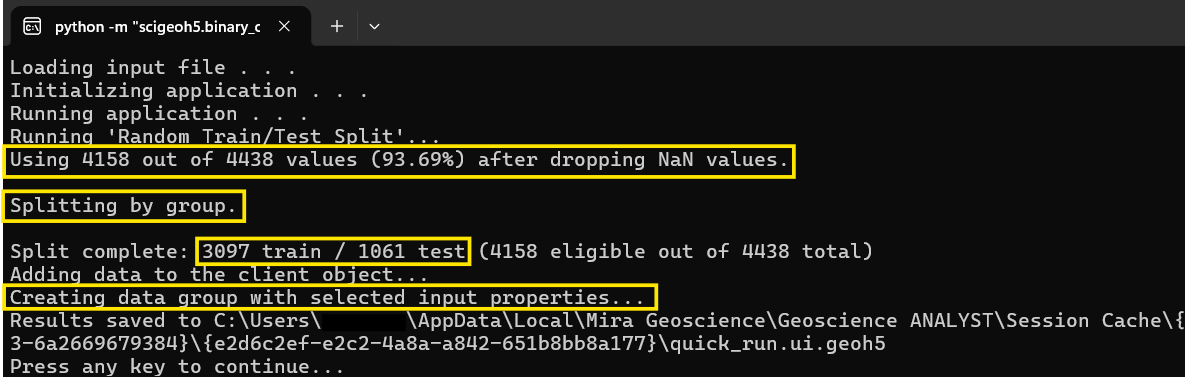
Take a look at metrics logged during the run to confirm:
the number of valid samples,
whether the split was done randomly or by group,
the actual sizes of the train and test sets in the output, and
that the data group was created when requested.
Finally, examine the results: a new
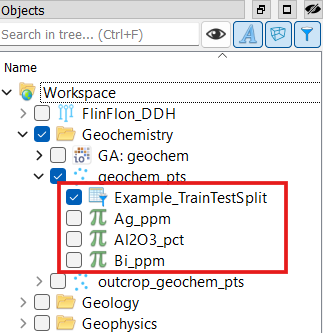
ReferencedDataproperty has been added to the object with the name specified in Output data name. In this example, we see the new property “Example_TrainTestSplit” on our Points object.
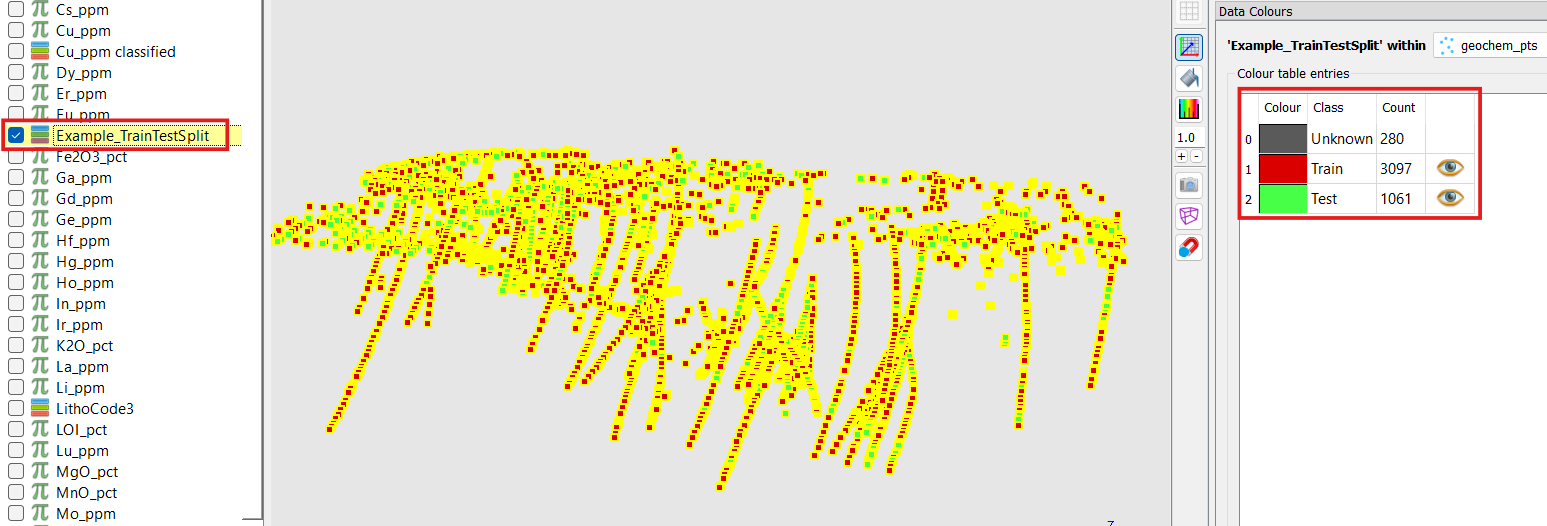
We also see a new data group “Example_TrainTestSplit” containing only the selected input properties.